ZOIA Support Articles

ZOIA Support Articles

Here are common support-related questions for your pedal.

Can't find what you're looking for? Contact us here!

Control Port & MIDI

You can change the bypass state, and simulate a number of different user interactions using MIDI CC messages on the MIDI channel selected in the Config Menu. See table below


Action MIDI CC message MIDI CC value
Engage or Bypass pedal 60

Bypass: 0
Toggle: 64
Engage: 127

Button, Stompswitch, Rotary Switch press 61

Buttons:
Grid: 0-39
Page Left: 40
Page Right: 41
Back: 42
Shift: 43
Euroburo Pushbuttons: 44-45
Euroburo CV Inputs: 46-49
Euroburo CV Outputs: 50-53
Euroburo Audio Inputs: 54-55
Euroburo Audio Outputs: 56-57
Euroburo Headphone: 58

Right Stompswitch: 124
Middle Stompswitch: 125
Left Stompswitch: 126

Rotary Switch: 127

Button, Stompswitch, Rotary Switch release 62 Same as above
Rotary turn 63

value - 64 = Number of turns
(positive clockwise, negative counter-clockwise)

Example: 65 = one clockwise turn, 63 = one counterclockwise turn


Expression pedals come in two pinouts. Some put the signal on the tip of the TRS cable (what the ZOIA expects), some put the signal on the ring. If it's on the ring, all the action will happen in the first 10% of the pedal's travel.


First of all, sorry! That's really annoying to deal with. Here are some things to consider:

We use MIDI type A (listen on the TIP, send on the RING)
- which is superior as it doesn't require a TRS cable unless you plan on sending PC messages out of the pedal.

Some other devices and brands have the opposite pinout so you'll need to check!

Most companies add jumpers or switches that allow you to change the pinout to be compatible with most devices.

If you're using a splitter like the Quadra-thru you may have issues as the Echosystem and Reverb do not have an optocoupler (the ZOIA does so it should be compatible with virtually anything out there)

If the device you're using isn't performing as desired and you've checked that your cables are good and the pinouts match, you may need to try swapping the splitter with an active one like the midibox2 - though you don't have to use ours, there are tons of them out there!


All of our pedals that have MIDI use MIDI Type A (MIDI Standard). Same as Korg and Make Noise.


The pinout for the expression pedal is TIP=signal, RING=3.3V power, SLEEVE=ground. So your expression pedal has to have that pinout. Here's a list of pedals that we know work. Please let us know if you find any other pedals that work!

  • Mission EP-1 and EP-2 (no polarity switch, polarity switch, respectively)
  • M Audio EX-P (has polarity switch)
  • Roland EV-5
  • Lead Foot LFX-1
  • Boss FV-500L
  • Boss EV-30
Moog EP-2 (we've tested the EP-2, and it works. it has been replaced by the EP-3 which we haven't tested yet)


This could be an issue with the TRS spec on the device you are trying to communicate with.

The world of TRS MIDI was once a wild place. There are 2 ways to map MIDI connections via TRS and for awhile there were NO STANDARDS! Basically half the companies where doing things with the "TRS A" Spec and half where doing "TRS B."

Eventually the MIDI association adopted the TRS A spec which is what the ZOIA uses.

If your device is TRS B, you would need a TRS B to TRS A cable or you could make one yourself.

Maybe the easiest thing to do would be use the TRS A MIDI dongle that came with the ZOIA connected to the ZOIA side and then us a TRS B MIDI dongle with your TRS B product and a 5 pin MIDI cable between the 2 and you should have communication!


The ZOIA receives CV(or MIDI) on the tip of a 1/4" cable and sends out on the ring side. So sending CV in to the ZOIA is pretty simple, you could just connect an unbalanced TS cable. Sending CV out can be a little more complicated because most CV inputs are looking for a signal on the tip of a cable and not on the ring. Here are a couple solutions:

1. Use a 1/4" TRS to dual 1/4" TS insert cable. https://hosatech.com/products/analog-audio/insert-cables/stp-200/. With this cable you can plug the ring side of the insert cable into the device you want to receive CV and still send CV back to the ZOIA via the tip side of the insert cable. For Eurorack a cable like this 1/8 to dual 1/4 cable is probably your best bet. https://www.harpooncables.com/product-page/1-4-trs-to-1-8-ts-y-cable.

2. Use a cable like this Hosa breakout cable - https://hosatech.com/products/analog-audio/stereo-breakouts/hosa-breakouts/ypp-117/ and use a TS cable connected the ring(red) jack to the device you wish to send CV to.

3. Make your own cable, with a standard TRS connection on the side used to connect to the ZOIA and flipping the ring connection while leaving the tip floating on the side you wish to send CV out on.


No this will not harm your ZOIA. The ZOIA will only respond to voltage from 0-5 volts but sending higher voltage from 5-12 volts will not damage the unit. Anything over 5 volts will register as 1 on the ZOIA's CV input.


Features

Need help with the ZOIA's Sampler and Sequencer functions? We've got you! Check out the Sampler/Sequencer Guide here and revel in the possibilities. 


ZOIA will not likely replace your pedalboard out of the box but it has the potential to.

It was not designed to be a digital pedalboard and replace all effects however it can be if you're ambitious enough.

There are pros and cons to our standalone pedals.

They are each designed to sound a good as possible and to be tweakable and convenient for the gigging musician but you are restrained to the UI and features that it was released with whereas the ZOIA you can make any changes and adjustments and routing that your mind can conceive.

ZOIA is not all of our pedals in one but you could make faithful recreations of our pedals' modes should you be ambitious enough!


Firmware

Below are instructions on how to update the firmware on your ZOIA and EUROBURO. Attached are the firmware files and the changelog.

How to upgrade your ZOIA's and EUROBURO's firmware

0) Backup your patches using the instructions in the manual.  To backup patches enter the config menu(shift + the gears icon) and select patches to SD card, then select an existing folder or make a new folder to save your patches in.

1) Download the firmware file from below. It should have the format eezoXXXX.bin where the XXXX is replaced by the version number. If there are two bin files below, the one with the higher version number is still beta. If you're going to use the beta firmware, make double sure to back up your patches! If you want to use old versions of the firmware, please go here.

2) Copy the file to the root directory of a high-capacity microSD card that's been formatted FAT32. Pictured below is the microSD card that comes with the ZOIA, but you can use any microSD card that has HC written on it. Note that some operating system don't want to format things as FAT32 (Some Mac OS's Disk Utility will be stubborn). For these obstinate OSes, you can use the SD Associations SD Memory Card Formatter.

3) For ZOIA, Insert the SD card then power on the pedal. Make sure the pins of the SD card are facing upward, or else ZOIA will prompt you to try again. If you're updating the EUROBURO, the steps are the same except the SD Card's pins will be facing downward. NOTE: DO NOT USE an SD card extender ribbon when updating the ZOIA and EUROBURO, your update will fail.


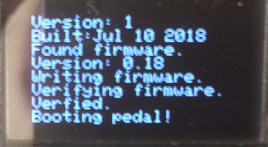
4) The screen will tell you when ZOIA/EUROBURO sees firmware and what it's doing with it. When it sees an update, it will take 40 seconds (and sometimes up to 3 minutes) to complete the update. 

In some cases, the screen won’t tell you anything and will be blank for 40 seconds. Sorry, I know it’s annoying, but it only happens when updating the firmware.


5) once the ZOIA/EUROBURO has booted fully, remove Micro SD card, manually cycle the power, and you're good! If you leave the Micro SD card in, it will update the firmware every time you boot it up. So if you intend to use the SD card for importing/exporting patches, delete the firmware file from the SD card.

Note: Empress firmware updates are released in the binary (.bin) file format. Some browsers, including Chrome and Firefox, are identifying .bin files as potentially harmful and may prevent users from downloading them. We are working on a solution, but in the interim, please follow the steps below to download these updates.

Some notes on Firmware 5:

  • The new factory patches only apply to ZOIA units. While most of the patches could be installed on and tweaked for ZOIA Euroburo, we felt that this new "guitar-centric" set of patches were best left to the stompbox unit! If you would like to install these new patches on your Euroburo, you can download them here
  • Firmware 5 has two patches (Groovebox and Grand Piano) that require samples to run. All new ZOIAs (excluding Euroburos) ship with these samples pre-loaded on their SD cards (plus the old factory patches), so we've zipped the contents here for any older ZOIAs who want in on the fun:


Note: Empress firmware updates are released in the binary (.bin) file format. Some browsers, including Chrome and Firefox, are identifying .bin files as potentially harmful and may prevent users from downloading them. We are working on a solution, but in the interim, please follow the steps below to download these updates.

On Chrome:

  • Download the file below as usual.
  • Click “Show All” on the right of the download bar.
  • Alternatively, go to your Chrome Downloads page (control+J on Windows, option+command+L on Mac).
  • Select “Keep dangerous file”.
  • Select “Keep Anyway”.


On Firefox:

  • Download the file below as usual.
  • In the Download overlay that appears, click the “>” button to the right of the exclamation point.
  • Select “Allow download”.


    We've prepared a ZIP of all the new factory presets included with ZOIA Firmware 5, for if you want to try out some of them without having to perform a factory reset. 


    1. Mac OS sometimes puts hidden files on SD cards related to Spotlight search, which can confuse Zoia on boot up.
    2. Plug SD card into your Mac and use Command + Shift + . (period) to see the hidden files. Move them to trash, unmount the drive, and voila! It should work fine going forward. 
    3. If you plug the SD card back into your Mac and the issue recurs, follow steps 1-2 again.


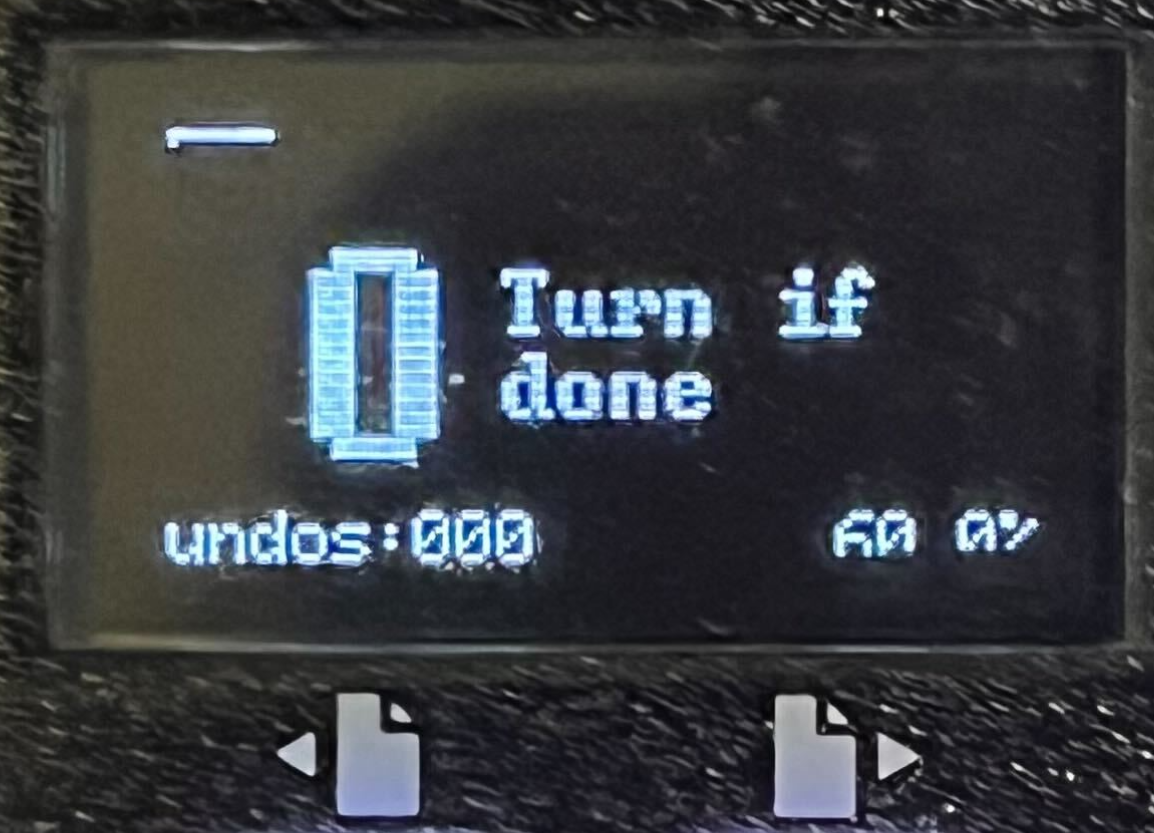
    Does your screen look like this when trying to load patches from the SD card? Only says null, null, null, and null...


    Chances are your SD card is formatted to something that's not FAT32 specific. ExFAT is not a version of FAT32 and should not be used. Try reformatting your SD card to FAT32 and loading patches again from the SD card to your ZOIA.


    Here are instruction for that:

    It needs to be a full re-format.

    Apple products do not format SD card the same way as Windows computers, so if you are using a Mac, you might need to use a third party SD card formatting app. Some Mac OS's Disk Utility can be stubborn. For these obstinate OSes, you can use the SD Associations SD Memory Card Formatter. 


    General

    The baseline latency when bypassed is 3.21ms and 1.33ms with each audio module in series between the input and the output.


    Mods

    Tools:

    #14 socket
    #12 socket
    1/2'' socket
    1/16 hex key
    5/64 hex key
    phillips screwdriver
    replacement button pad

    Step 1: remove the backplate, jack nuts and lift out the top board.

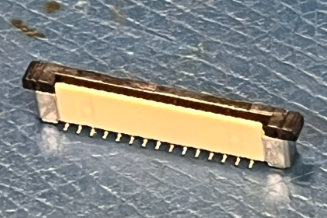
    To remove the top board, gently rock the black tab up until it releases the flex cable.
    Tab open:
    Tab closed:
    Step 2: use a 1/16 hex key to remove the knob and remove the 3 nuts from the face of the pedal
    (hold the footswitches as you loosen the nuts)
    Step 3: if these screws are black, use a 1/16 hex key. If these screws are silver, use a 5/64 hex key. Remove the 4 hex screws but do not remove the 5th yet (red X)
    Step 4: now hold the PCB in like this and remove the last hex screw with a 5/64 hex key.
    Step 5: flip the pedal over while holding the PCB in and gently lower the PCB down, making sure to keep the screen assembly together.
    Step 6: pull off the enclosure and replace the pad, making sure to keep the screen assembly together. The button pad sits flat on the PCB (there are little rubber pegs than sit in holes in the PCB)
    Step 7: While holding the PCB like this, lower the enclosure back down making sure the button pad comes through and the screen assembly does not come apart. While holding the PCB in with one finger, tighten the middle hex screw to keep everything in place as you assemble the rest and tighten all screws and nuts.


    Step 8: install all hex screws, footswitch nuts, encoder nut and re-attach knob.

    (Make sure to align the vinyl spacer if you have one) (the X just means we've already done that part)


    Step 9: insert flex cable in connector and push black tab down firmly on both ends to lock it in place.
    insert PCB in enclosure and fasten with the jack nuts. Put backplate back on and tighten the screws.


    You're done!


    Modules

    • SD Card needs to be FAT32 formatted
      • If it isn't, you can format in the Config menu
    • Files have to be 48kHz / 16bit Stereo WAV files to work
    • WAV files have to be in the root folder or one folder past the root folder of the SD card (no nested folders!)
    • WAV files must be present (and SD Card plugged into the pedal) at boot time in order to be available as an option for the sampler
      • Alternatively, you can generate the file list through the Config menu
    • Max. WAV file length is 10 minutes
    • Sampler DSP usage increases with increased playback speed
    • Sampler DSP usage slightly higher in recording/overdub than in playback
    • We can only show ~64 list items at a time so we are capped at a maximum of 64 directories each with a maximum of 64 files to choose from on the sampler
    • It's Beta firmware so SAVE PATCHES OFTEN!


    // half step is 1, whole step is 2


    static const Scale scale[NUMBER_OF_TOTAL_SCALES] = {

    { .scale_name = "Chromatic", .scale_increments = { 1, 1, 1, 1, 1, 1, 1, 1, 1, 1, 1, 1 } },

    { .scale_name = "Major", .scale_increments = { 2, 2, 1, 2, 2, 2, 1 } }, // major scale (ionian, bilawal)

    { .scale_name = "m Natural", .scale_increments = { 2, 1, 2, 2, 1, 2, 2 } }, // natural minor (aeolian, asavari)

    { .scale_name = "m Harmonic", .scale_increments = { 2, 1, 2, 2, 1, 3, 1 } }, // harmonic minor

    { .scale_name = "m Melodic", .scale_increments = { 2, 1, 2, 2, 2, 2, 1 } }, // melodic minor

    { .scale_name = "M Harmonic", .scale_increments = { 2, 2, 1, 2, 1, 3, 1 } }, // harmonic major

    { .scale_name = "Dorian", .scale_increments = { 2, 1, 2, 2, 2, 1, 2 } }, // dorian (kafi)

    { .scale_name = "Phyrigian", .scale_increments = { 1, 2, 2, 2, 1, 2, 2 } }, // phrygian (bhairavi)

    { .scale_name = "Lydian", .scale_increments = { 2, 2, 2, 1, 2, 2, 1 } }, // lydian (kalyan)

    { .scale_name = "Mixolydian", .scale_increments = { 2, 2, 1, 2, 2, 1, 2 } }, // mixolydian (khamaj, adonai malakh)

    { .scale_name = "Locrian", .scale_increments = { 1, 2, 2, 1, 2, 2, 2 } }, // locrian

    { .scale_name = "M Locrian", .scale_increments = { 2, 2, 1, 1, 2, 2, 2 } }, // major locrian

    { .scale_name = "Ahava Raba", .scale_increments = { 1, 3, 1, 2, 1, 2, 2 } }, // Ahava Raba (phrygian dominant)

    { .scale_name = "Akebono", .scale_increments = { 2, 1, 4, 1, 4, 2, 1 } }, // akebono

    { .scale_name = "Bhairav", .scale_increments = { 1, 3, 1, 2, 1, 3, 1 } }, // Double Harmonic Major (Bhairav, flamenco)

    { .scale_name = "Marwa", .scale_increments = { 1, 3, 2, 1, 2, 2, 1 } }, // Marwa

    { .scale_name = "Purvi", .scale_increments = { 1, 3, 2, 1, 1, 3, 1 } }, // Purvi

    { .scale_name = "Todi", .scale_increments = { 1, 2, 3, 1, 1, 3, 1 } }, // Todi

    { .scale_name = "Pelog", .scale_increments = { 1, 2, 3, 1, 1, 2, 2 } }, // pelog.

    { .scale_name = "Ukrainian", .scale_increments = { 2, 1, 3, 1, 2, 1, 2 } }, // Ukrainian Dorian

    { .scale_name = "Romani", .scale_increments = { 2, 1, 3, 1, 1, 2, 2 } }, // Romani (gypsy scale)

    { .scale_name = "MHungarian", .scale_increments = { 3, 1, 2, 1, 2, 1, 2 } }, // Hungarian major

    { .scale_name = "mHungarian", .scale_increments = { 2, 1, 3, 1, 1, 3, 1 } }, // Hungarian minor

    { .scale_name = "Persian", .scale_increments = { 1, 3, 1, 1, 2, 3, 1 } }, // Persian

    { .scale_name = "M Neapol", .scale_increments = { 1, 2, 2, 2, 2, 2, 1 } }, // Neapolitan major

    { .scale_name = "m Neapol", .scale_increments = { 1, 2, 2, 2, 1, 3, 1 } }, // Neapolitan minor

    { .scale_name = "H Dim", .scale_increments = { 2, 1, 2, 1, 2, 2, 2 } }, // Half Diminished

    { .scale_name = "W-H Dim", .scale_increments = { 2, 1, 2, 1, 2, 1, 2, 1 } }, // Whole-Half Diminished

    { .scale_name = "H-W Dim", .scale_increments = { 1, 2, 1, 2, 1, 2, 1, 2 } }, // Half-Whole Diminished

    { .scale_name = "Istrian", .scale_increments = { 1, 2, 1, 2, 1, 5 } }, // Istrian

    { .scale_name = "Prometheus", .scale_increments = { 2, 2, 2, 3, 1, 2 } }, // Prometheus

    { .scale_name = "Harmonics", .scale_increments = { 3, 1, 1, 2, 2, 3 } }, // Harmonics

    { .scale_name = "Tritone", .scale_increments = { 1, 3, 2, 1, 3, 2 } }, // Tritone

    { .scale_name = "2semi Tri", .scale_increments = { 1, 1, 4, 1, 1, 4 } }, // two-semitone Tritone

    { .scale_name = "Wholetone", .scale_increments = { 2, 2, 2, 2, 2, 2 } }, // Wholetone

    { .scale_name = "M Penta", .scale_increments = { 2, 2, 3, 2, 3 } }, // major pentatonic

    { .scale_name = "m Penta", .scale_increments = { 3, 2, 2, 3, 2 } }, // minor pentatonic (Yo)

    { .scale_name = "Hirajoshi1", .scale_increments = { 4, 2, 1, 4, 1 } }, // Hirajoshi 1

    { .scale_name = "Hirajoshi2", .scale_increments = { 1, 4, 2, 1, 4 } }, // Hirajoshi 2 (In)

    { .scale_name = "Hirajoshi3", .scale_increments = { 4, 1, 4, 2, 1 } }, // Hirajoshi 3

    { .scale_name = "Hirajoshi4", .scale_increments = { 1, 4, 1, 4, 2 } }, // Hirajoshi 4 (Iwato)

    { .scale_name = "Hirajoshi5", .scale_increments = { 2, 1, 4, 1, 4 } }, // Hirajoshi 5

    { .scale_name = "Insen", .scale_increments = { 1, 4, 2, 3, 2 } }, // Insen

    { .scale_name = "Fourth", .scale_increments = { 5, 7 } }, // fourth

    { .scale_name = "Dim Fifth", .scale_increments = { 6, 6 } }, // diminished fifth

    { .scale_name = "P Fifth", .scale_increments = { 7, 5 } }, // perfect fifth

    { .scale_name = "Aug Fifth", .scale_increments = { 8, 4 } }, // augmented fifth

    { .scale_name = "Octave", .scale_increments = { 12 } } // octave


    This spreadsheet of ZOIA's modules strives to keep the user fully informed about the entirety of the module functionality. It also strives to be up to date.


    ZOIA MODULE INDEX


    Setup

    Generally, you should avoid doing this unless you absolutely need to. All ZOIAs are calibrated during production.

    To recalibrate the colours on ZOIA's button grid, you'll need to have installed firmware 1.13 or later.

    Instructions below:

    Calibrating the LED Grid on your ZOIA

    Underneath each button on the ZOIA, there is a red, green, and blue LED. The pedal combines different amounts of these LEDs to display the range of colours that make your patches pop! When the 3 LEDs are set to the same brightness, the resulting colour should be white. But sometimes there are slight differences between the individual LEDs for each button, or they appear dim, which can make your white grid look not quite right. It might look like a few buttons are greener than the others, or maybe the entire grid will look more pink than white. This guide will show you how to adjust the grid so the colour of all buttons is consistent.

    1. While powering on your ZOIA, hold down the left stomp switch for 20 seconds or so. You should see the following screen, letting you know you’ve entered calibration mode.


    2. For now, press the right stomp switch to continue. (The second option will be explained later in step 10)

    3. Next the grid will light up and you’ll see some instructions on the screen.


    4. Because you are not done, press the encoder to move to the next step of the calibration process.


    5. If all of the buttons are more or less the same colour, you can treat them as a group and move onto step 6. If the button colours are very different from one another, you'll need to treat them as separate groups. I find it helpful to try to get them all to the same colour before trying to make them white. So break into groups by pressing on similarly coloured buttons, go to step 6, and then come back to this step to treat the next group of buttons. Pressing buttons creates a group, and turning the encoder deletes the grouping and treats them all as one group again. When you are done selecting your group, press the encoder.


    6. This will now let you adjust the brightness of the selected LEDs to make them look as consistently white as possible. Each LED starts with a brightness of 127, which can be set as low as 0 or as high as 255. The number of buttons selected is shown in the top left corner.

    Turn the rotary encoder to increase or decrease the brightness of the colour that is currently selected, which is indicated by an asterisks to the right of the value. Pressing the encoder selects the next colour.


    7. When you’ve made some adjustments and you’re satisfied with how the grid looks, turn the encoder when you see this screen:


    8. Then, you’ll see two options on the screen:


    9. Pressing the right stomp switch will save all the adjustments you just made to the Zoia, so the grid will continue to look great every time you boot up your ZOIA. You can also disregard any next steps displayed on the Zoia's screen since those only apply when we are building and testing Zoias. Simply remove the power cable, wait a moment, and re-apply power, and it should be good to go!

    One note, if you enter calibration mode again, it will reset the brightness of all LEDs back to 127 and you’ll have to start over.

    10. If you make a lot of adjustments, you might want to save the calibration values to an SD card so you can change them again without having to start over.

      1. Create a new folder in the root directory of your SD card named led_grid_calibration
      2. Insert the card into your ZOIA then press the middle stomp switch to select ‘save led cal to sd’
      3. You’ll see a message on the screen telling you that the led calibration file has been saved. If you look inside the led_grid_calibration folder now, you’ll see a file named ‘cal1.bin’
      4. Next time you want to adjust the calibration file, boot up into calibration mode again and press the middle stomp switch this time.
      5. Regardless of whether you saved the data to the SD card, the new led calibration settings are now saved. You can unplug the ZOIA and reboot it as normal.

      Note: if you want to exit calibration at any point and don’t want to save your changes, just unplug the pedal.